Multi-Line Chart: Definition, Examples, and Best Practices
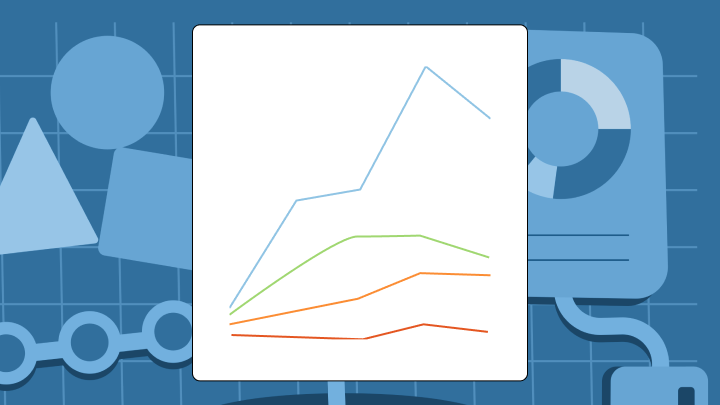

Multi-line charts help you compare trends across categories on a single visualization, but they come with tradeoffs. Add too many lines and readability collapses. Mix incompatible scales and you invite misinterpretation. This article walks through the definition, data requirements, best practices, and alternatives so you can choose the right approach for your next dashboard.
What Is a multi-line chart?
Need to compare trends across regions, channels, products, or key performance indicators (KPIs) without flipping between a dozen charts? A multi-line chart can answer that fast. Add too many series or mix mismatched metrics, though, and you get a spaghetti chart that convinces nobody.
A multi-line chart plots two or more data series on a shared set of axes. Time typically runs along the horizontal axis. A measured value sits on the vertical axis. Each line represents a different category (like region) or a different KPI (like revenue vs pipeline, if they share a unit and scale). You compare them by looking at slope, position, and where lines cross.
You might hear this called a multiple line graph or a multiseries chart. Some tools label it "line chart with multiple series" in their menus. Same thing.
This differs from a stacked area chart. Multi-line charts show individual values. Stacked area charts show cumulative totals where each layer adds to the one below.
Key takeaways
Data requirements for a multi-line chart
Ever had months appear in alphabetical order instead of chronological? That happens when your date column is formatted as text rather than an actual date type. Fix your data types before charting.
Your data set needs three fields:
Data shape matters depending on your tool. Wide format places each series in its own column, which works in Excel. Long format uses one row per observation with a category column, which BI tools prefer. If your BI tool expects long format and your data is wide, you will need to pivot it first.
If you're pulling series from multiple systems, treat "consistent" as a data requirement, not a preference. That means aligning date dimensions, matching time zones, and standardizing metric definitions (so "revenue" is revenue everywhere, not "bookings" in one dashboard and "recognized" in another).
In Domo, teams often handle this upstream with Magic Transform (Magic extract, transform, load (ETL), SQL, or Python) to join multisource data, standardize naming, and reshape wide vs long before the multi-line chart ever renders. Data engineers can also schedule those pipelines so the data set refreshes on a defined cadence. Cuts down on the "Why is my chart stale?" questions.
One more thing: If one series has daily data and another has monthly, the chart will render but comparisons become misleading. Aggregate to a common interval before charting.
If your data lives in a warehouse and you want the chart to reflect live numbers without copying data around, some BI platforms (including Domo Integration) can federate queries directly to sources such as Snowflake. Great for freshness. You still need consistent grain and definitions or you're just getting inconsistent data more frequently.
How to create a multi-line chart in Excel
Say your data is in wide format with dates in column A and each series in columns B through D. Here's how to build it:
Your finished chart should show one line per series. The legend should match column headers. Dates should be spaced proportionally if there are gaps.
What if one series uses a different unit, like percentages versus counts? You can add a secondary y-axis by right-clicking that series and checking Secondary Axis. But dual-axis charts are easy to misread. Label both axes clearly, and consider whether small multiples might be clearer.
Excel handles static charts well. For dashboards that refresh automatically (and for the repeat requests that feel like they always come back next week), a BI tool cuts down on manual rework.
In Domo BI, that often looks like building the multi-line chart once, tying it to governed metric definitions in a semantic layer, then reusing the same trusted metrics across every dashboard.
Multi-line chart components and labels
Legends force viewers to match colors to labels. That slows comprehension. Direct labeling (placing the series name at the end of each line) reduces that cognitive load. Works great unless lines cross frequently.
Direct labels also help when you're sharing the chart with people who didn't build it. Think sales reps, store managers, or customer success managers who just want to know if their territory is trending up. According to Forrester, only 20 percent of business people can fulfill their own BI needs. That means 80 percent of your audience may struggle to interpret a chart that requires mental color-matching. Less decoding means more action.
The main components include:
Use a colorblind-safe palette. Avoid red-green combinations, which around 8 percent of men struggle to distinguish (for example, due to red-green color vision deficiency). In a multi-line chart with five series, that's a meaningful portion of your audience who may confuse two of your trend lines entirely.
A secondary y-axis makes sense only when comparing series with different units, like revenue versus conversion rate. Both axes need clear labels. If the relationship between the two axes is arbitrary, the chart invites misinterpretation.
If you're delivering multi-line charts inside an app or customer portal, labeling and filtering does even more heavy lifting. Domo Embed supports programmatic filters (pfilters) so each person sees the right slice (their account, region, or role), plus Brand Kit so the chart matches the host product's look and feel.
Best practices for multi-line charts
More than five or six lines? You've got a spaghetti chart. No individual trend is readable. New colors won't fix it.
Some rules that prevent errors:
If your organization publishes the same multi-line chart concept in multiple places (an exec dashboard, a sales dashboard, a weekly email), consistency becomes a best practice too. BI managers usually push for centralized, reusable metric definitions so "pipeline" means the same thing everywhere, even when different teams build their own charts.
For noisy data like daily website traffic, a seven-day rolling average smooths volatility. Show both the raw data and the smoothed line if precision matters.
If you're embedding multi-line charts, Domo Embed supports Beast Mode custom calculations so you can display rolling averages or growth rates without asking engineering to change the backend data model. Handy when stakeholders want "one more line" and they want it yesterday.
When to use small multiples instead
Lines overlapping so much that individual trends disappear? Small multiples are usually clearer. Instead of overlaying all series on one axis, each series gets its own panel with synchronized axes.
Small multiples use more space and make direct value comparison harder. They excel at pattern comparison.
Sort panels by something meaningful, like highest to lowest average. The sort order itself communicates priority.
Mistakes that distort multi-line charts
A sales team once saw two product lines converging on a dual-axis chart and assumed performance was equalizing. The axes were just scaled to make lines appear to meet. They reallocated resources based on a visual artifact. It's the kind of mistake that will haunt a quarterly review.
Watch for these:
Another distortion that sneaks in at scale: The same metric gets calculated two different ways across dashboards. The multi-line chart looks "right," but revenue in one view includes refunds and another view does not. That's less a charting issue and more a data governance issue. According to Gartner, in 2020, poor data quality cost organizations $12.9 million per year on average. When your multi-line chart shows conflicting trends because of inconsistent definitions, you're contributing to that cost.
Alternatives when a multi-line chart fails
Not every time-series question calls for a multi-line chart.
Indexed charts show relative change but obscure absolute values. Stacked areas make it hard to read values for any series except the bottom one.
If your real goal is delivery (getting the right trend view to the right person, inside the place they already work), an embedded approach can be the difference between "nice dashboard" and "daily habit." Domo Embed supports dynamic data set switching, so one multi-line chart template can power many customers' views while keeping the schema and visualization consistent.
Multi-line chart examples
A chart showing monthly revenue for four regions over one year. Region A and Region B tracked closely until the third quarter (Q3), when Region B diverged upward. The decision: Investigate what changed in Region B.
A chart showing weekly website traffic for three product categories. Category X spikes in November and December while Category Y stays flat. The decision: Shift marketing budget toward Category X in the fourth quarter (Q4).
A chart showing customer acquisition cost for two channels over 18 months. Channel A was cheaper until Month 10, when Channel B became more efficient. The decision: Reallocate spend toward Channel B.
Here are a few more that come up a lot in BI teams:
A single-line chart would miss these comparisons. A table would miss the trend shapes and crossover timing.
How to explain a multi-line chart in 30 seconds
Use this structure:
Example: "This chart shows monthly revenue for our four largest regions over the past year. The key comparison is the divergence between East and West starting in July. The main takeaway is that East outpaced West by 15 percent in the second half. Don't conclude that East will continue outperforming. This shows history, not a forecast. If we need to understand why the divergence happened, we should drill into underlying drivers."
If you're presenting to leaders who have seen three different versions of the same KPI, add one sentence on data trust: "These lines use the same governed definitions as the exec dashboard, so we're all looking at the same cut." It isn't fluff. It prevents the meeting from turning into a definitions debate.
Multi-line chart checklist
Before sharing your chart, verify:
If someone unfamiliar with the data can state the main insight within ten seconds, the chart is working.
Two lines that appear to move together because of axis scaling, not actual relationship? Calculate correlation separately. Visual similarity isn't proof.
If this chart is going to appear across multiple dashboards, add one more check: The metric definitions match everywhere this multi-line chart shows up.
Limitations of multi-line charts
These charts can't show composition. They show individual values, not how parts add to a whole.
They can't handle many categories. Once you get past five or six lines, readability collapses.
They can't compare values at a single point in time effectively. Bar charts are a clearer choice for snapshots.
They can't imply causation. Two lines moving together doesn't mean one causes the other.
They can't substitute for statistical analysis. Visual trends suggest. Calculations confirm.
How multi-line charts change decisions
This chart makes identifying underperforming segments easier. You can target intervention rather than making blanket changes.
It makes determining why a divergence occurred harder. The chart shows the pattern, not the cause.
Teams often overcorrect when seeing one line decline. They cut resources without checking whether the decline is seasonal. I've seen this play out more times than I'd like to admit.
A product team sees Feature A adoption declining while Feature B rises. The chart tempts the conclusion that people are switching. It can't confirm that. Validating requires cohort analysis, not more lines.
Multi-line charts also change who gets to answer questions. With self-service analytics, line-of-business (LOB) managers can filter by rep, region, or time range and see the trend update instantly, without waiting on a ticket. Great for speed, as long as the underlying metrics stay governed so everyone stays aligned.
Final thoughts
Multi-line charts work when comparing trends across a small number of categories that share a common scale. They fail when line count exceeds readability, scales are incompatible, or the goal is composition.
For dashboards that update automatically, Domo's visualization tools support multi-line charts with drag-and-drop configuration and real-time data refresh. When teams connect data from lots of places, Domo Integration (connectors, federation, and caching) and Magic Transform help keep the data clean, current, and consistently structured. Pair that with reusable metric definitions, and you get consistent trend visibility across every dashboard. So if you want to swap manual Excel updates for governed, always-fresh trend dashboards (without the spaghetti), Try for free.


