Join the AI + Data Tour for hands-on training, real customer stories, and time with Domo product experts near you.
Register now
What if the slowest part of building a data pipeline was never your logic, but the workspace around it? The September release for Domo Magic ETL, the visual tool for extract, transform, load (ETL) work, makes that case. Magic ETL has always been powerful, though the workspace around it sometimes asked for a fair amount of patience.
Consider the last time you opened a dataflow to make one small change. You resized the same panels you always resize and hunted for a setting that never seems to stay put. Then you ran the whole thing, only to learn that a filter quietly dropped half your rows.
In a Domo livestream, Andrea Henderson, who leads product management for data transformation, elaborated on what she calls a new era for Magic ETL, with a redesigned canvas, several new tiles, and a look at AI features on the way.
Let's walk through when to turn on the new layout, which preferences to set first, and where each new tile fits best.
When the September release reaches your instance, you'll notice your existing dataflows look exactly the same. That's by design, because we know some will prefer the original interface. The new interface is opt-in, so your current setup stays in place until you turn it on.
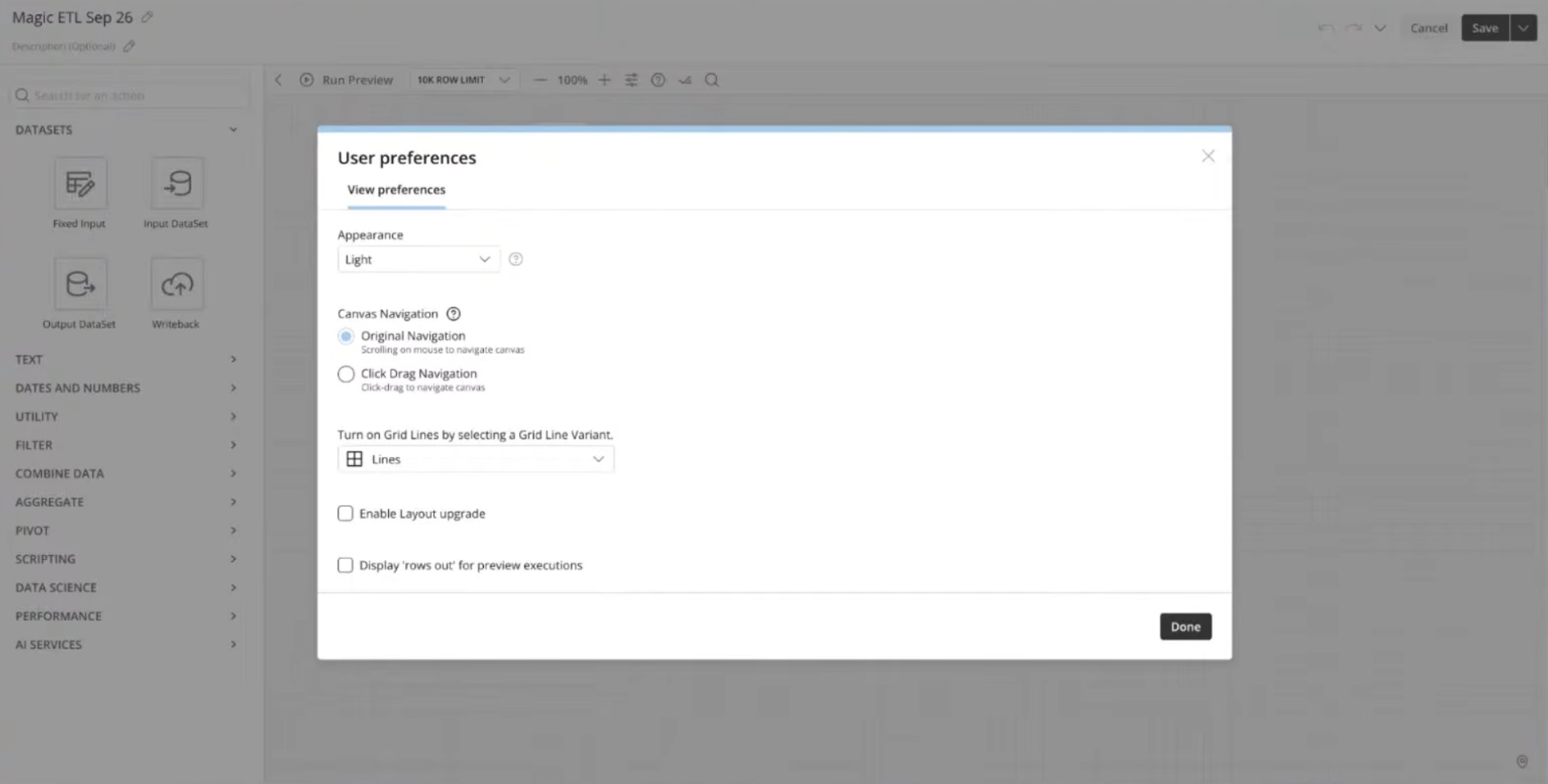
Turning it on takes a few clicks. Open Settings, enable the layout upgrade, and save your preference. Try one of the preset layouts before you build your own.
If you do choose to opt in, the upgraded look builds the canvas around four corners of the screen, and you choose what lives in each one. You can dock the panels you reach for most, such as the schema for your inputs, the configuration for an action, or a live preview. As Andrea described it, tools that once sat locked inside "configuration window prison" now stand on their own.
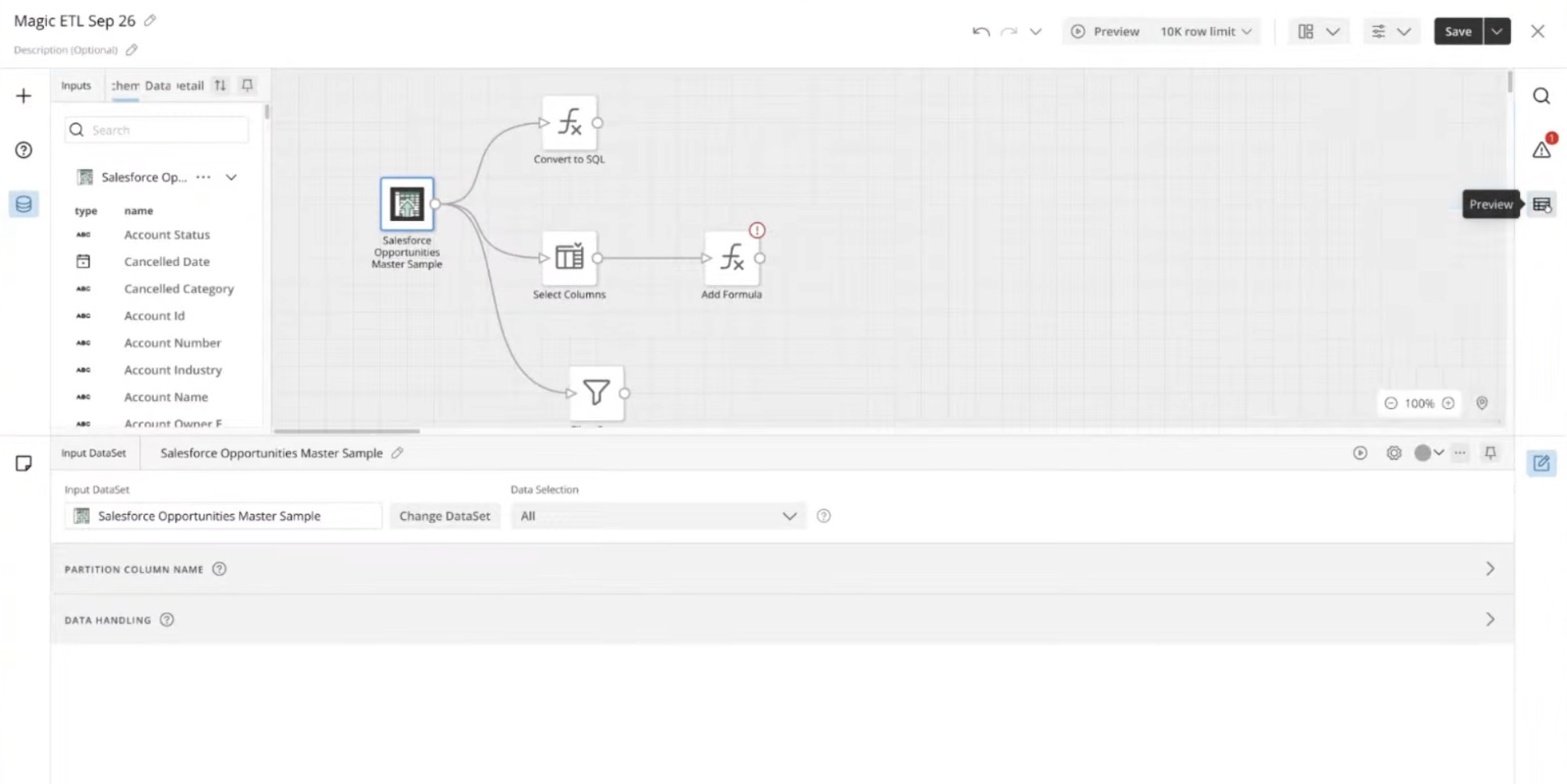
The bigger shift is a new user preferences menu. For the first time, your choices carry across every dataflow you open, rather than resetting each session. These preferences gather several requests people have raised for years.
A few of them drew real cheers when we showed them on stage at Domopalooza. The options include:
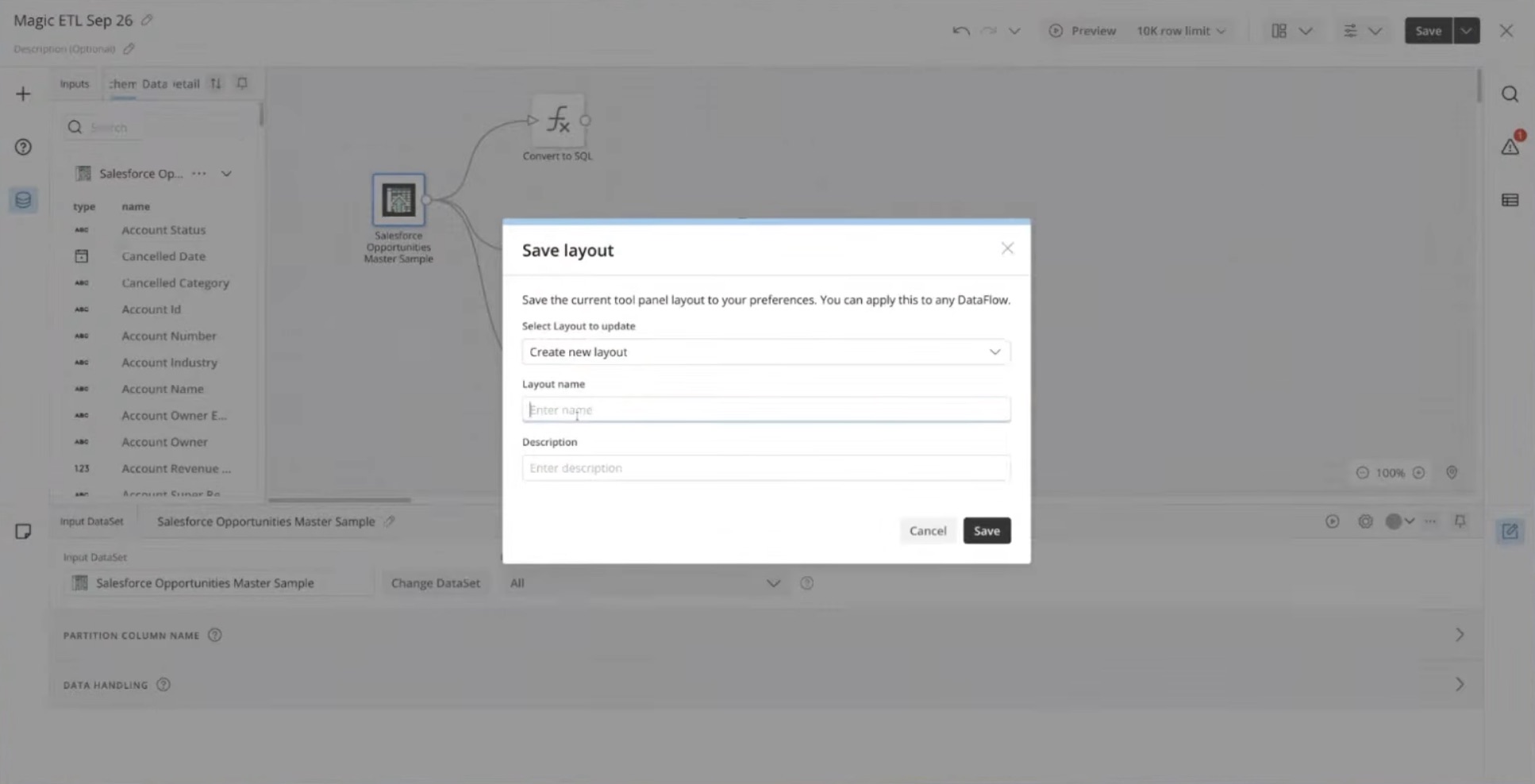
You can also save a full layout and reuse it. Domo ships two presets to start. One is a simple arrangement that feels like classic Magic ETL, and the other is closer to a code-first workspace.
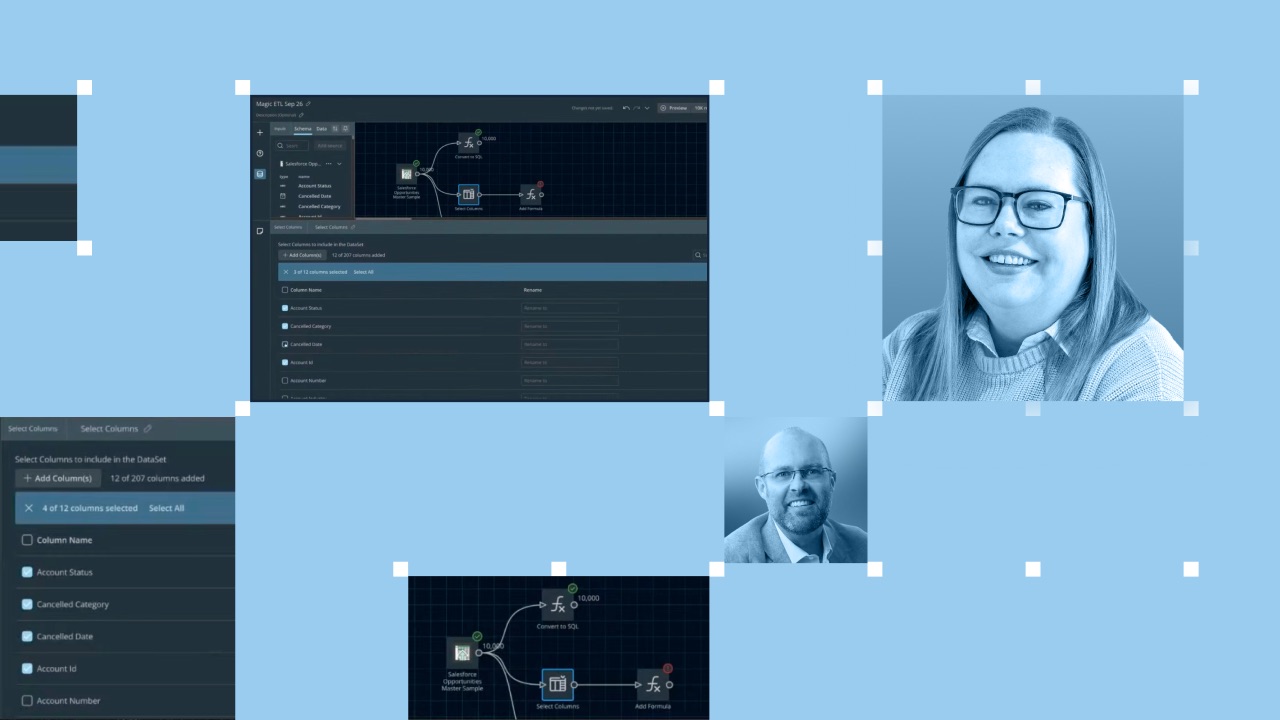
The select columns tile is one of the most used steps in Magic ETL, and it was also one of the most tedious. The redesign lets you search for a column by name, then add or remove it. You watch the result update as you go.
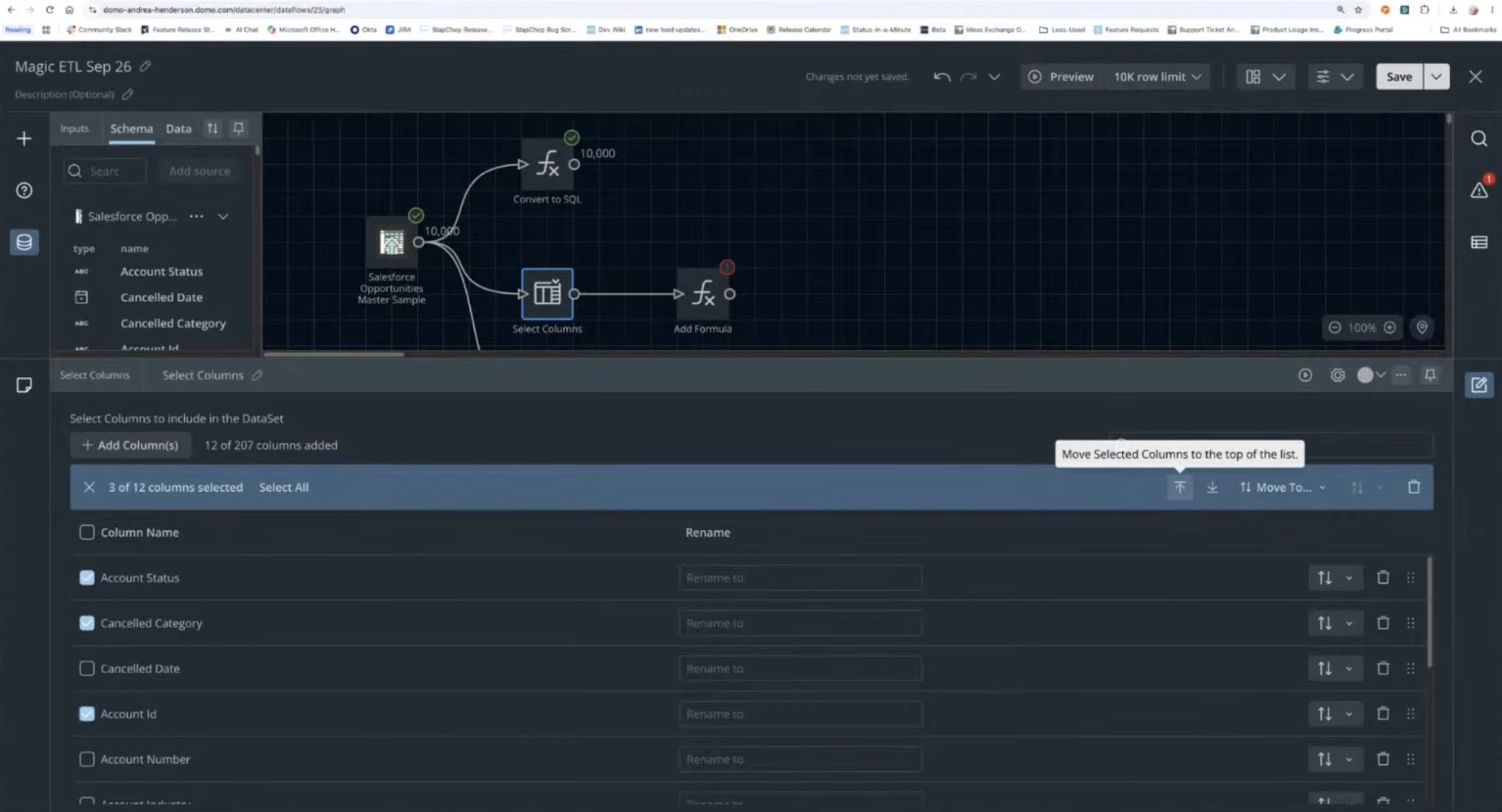
You can reorder a single column or send a whole group to the top or bottom. You can also alphabetize a run of selected columns in one move. Andrea said anyone managing a 287-column table will feel the change right away. It helps most when you need a specific set of columns in a specific order.
A related option converts any tile into a SQL tile. Right-click a tile to see the SQL (Structured Query Language) behind it, which helps you audit the logic or check what a step is doing. A single undo puts the original tile back if you change your mind.
The release also supports people who prefer to work in SQL instead of drag and drop. The new SQL script tile lets you write a full script inside a single tile.
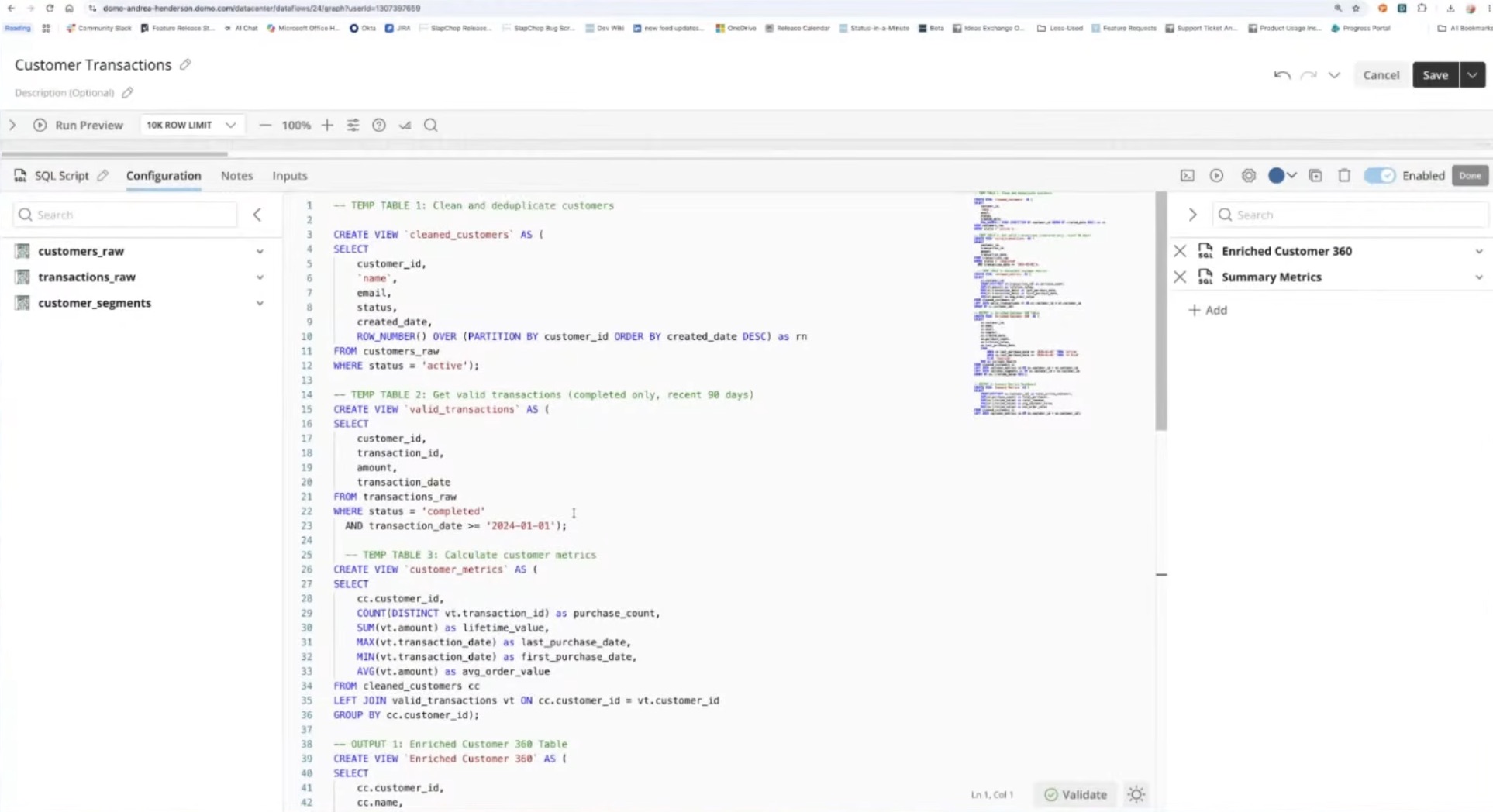
It accepts several inputs and lets you build in-between steps that you don't need to pass downstream. When you are ready, you pick which tables to output and leave the rest as working views. A livestream attendee compared this tile to a stored procedure, and that's a fair way to picture it.
Some of the most time-consuming pipeline work is reading through text and sorting it by hand. The release adds two tiles that take that on, and both keep people in charge of the rules.
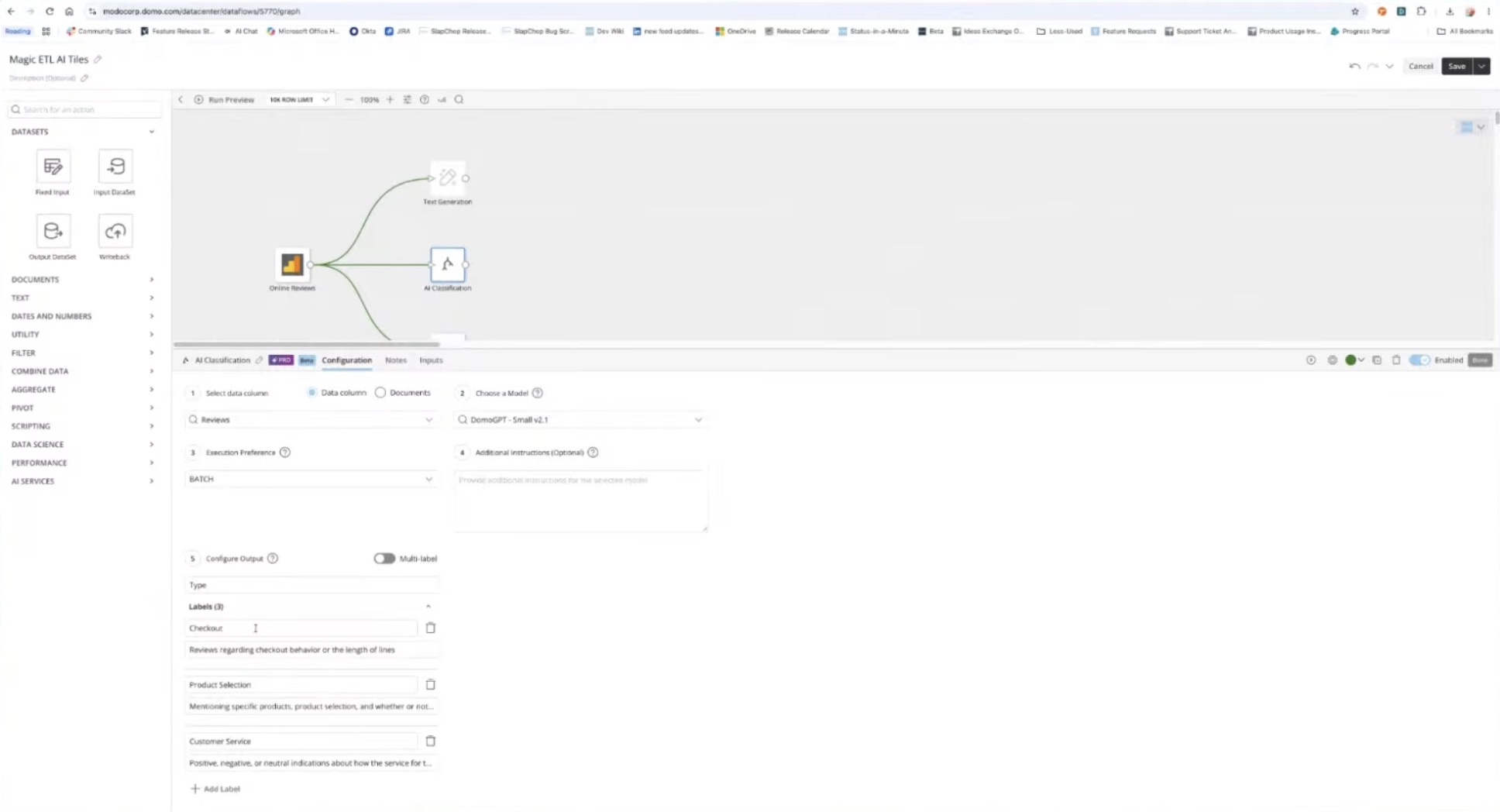
The AI classification tile labels a column against categories you define. You can also turn on multi-label sorting when a single row belongs to more than one bucket. The sentiment analysis tile scores a column as positive or negative overall, or against targets you describe.
These join the existing text generation tile, which now runs on smaller data sets, starting below the previous 100-row minimum.
All three are AI Pro features. They run on the AI models you choose through Domo's AI Service Layer, not on a model Domo builds. You set the labels and review the results, so the analysis stays governed from the first row to the last.
Two additions target the frustration of finding mistakes too late. Row-out previews now sit right on each tile and show how many rows leave a step during a preview. That makes it easy to spot a filter that removes everything, or a join that multiplies your row count, before you run the full dataflow.
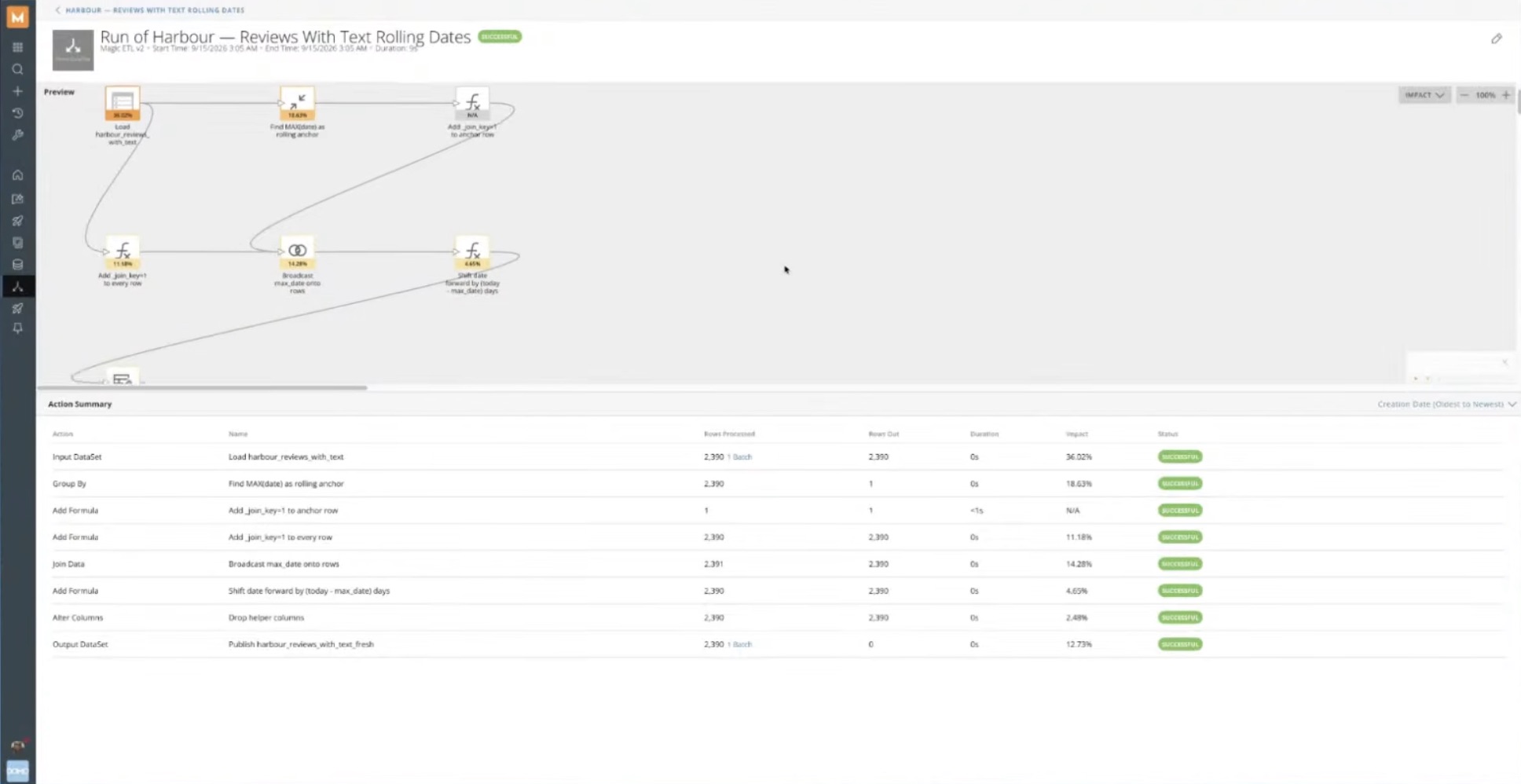
The execution details heat map goes a level deeper once a flow finishes running. It highlights which steps carry the heaviest processing, how many rows moved through each one, and where rows were added, dropped, or changed.
You can also open any past version of a dataflow to inspect it, without making it the current version. From there, you can save it as a new version or branch it into a separate flow to try a different path.
Andrea closed the demo with a preview of features still in development, with release dates still to come. The first is a concept called authoring sessions. They set aside compute while you build, so previews can keep scrolling well past the usual 100 rows and the experience feels quicker.
The second is an AI assistant for Magic ETL. It can study data sets you do not know well and suggest how they join by reading their keys and how the tables relate. It reports the tools it uses along the way.
The design keeps you in control, explaining its thinking and asking before it adds a join to the canvas. A documentation panel will arrive with it.
Domo also plans to offer the same tools through the Model Context Protocol. That standard lets AI assistants connect to outside applications, so teams can reach these tools from other software too.
The September release—which includes many of these updates—rolls out the week of September 22, and everything will appear in your instance automatically. For those not in this release, look out for upcoming betas.
To see the new canvas and tiles in action, and to get even more details from Andrea's session, catch the full livestream here.