If you’re a power user of Domo (or any enterprise software) long enough, you start to notice its less-than-helpful “quirks”: browser tabs just titled “Domo,” detailed card errors only accessible via dev tools, or those pesky 431 error codes when working across multiple instances. Or complex admin actions only accessible in admin interfaces, outside of your normal workflow.
I run into these problems constantly while working inside Domo. And while none of them make me dislike using Domo, they do decrease my productivity and quality of life. So, with a little help from Will West and Elliott Leonard, I decided to build a solution.
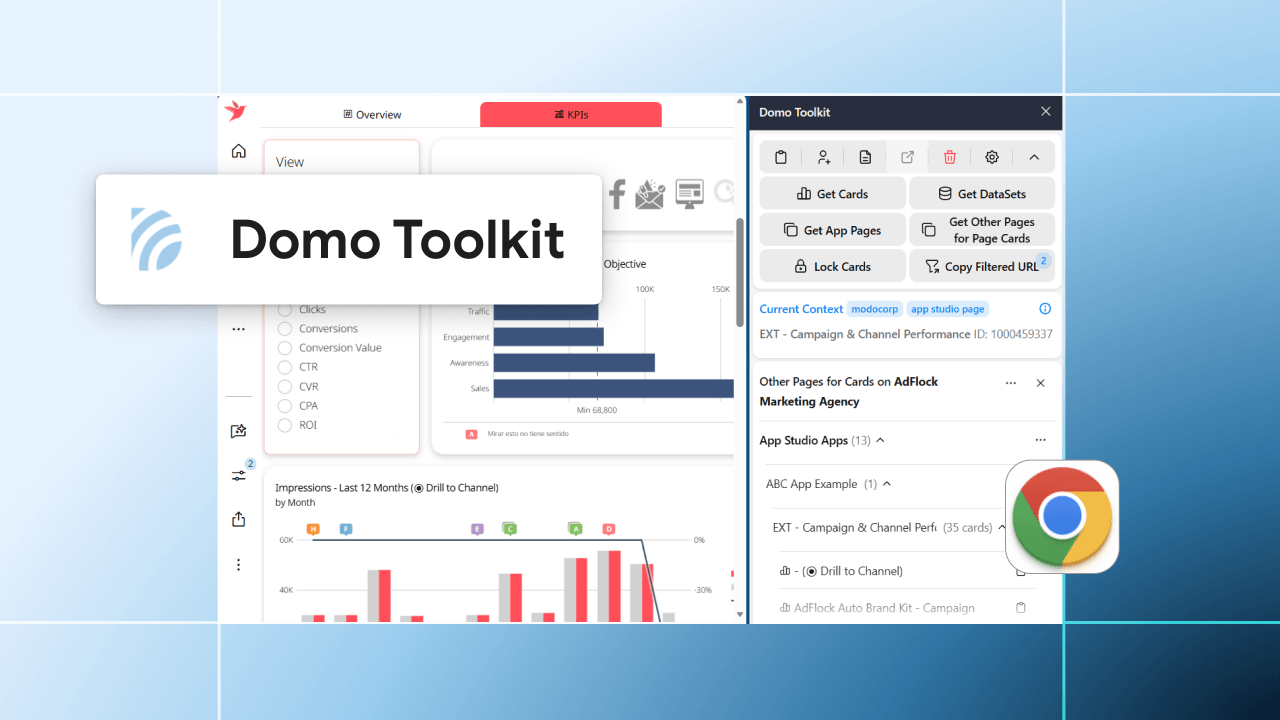
This month’s Hack the Domo Stack introduces Domo Toolkit, a free Chrome extension created to give Domo administrators, consultants, and power users faster access to the info and tools you need every day.
First, a quick disclaimer before we get to how it all works: This extension is an independent, community-developed project. Domo, Inc. has no responsibility for its functionality or performance or for any consequences arising from its use.
What is Domo Toolkit?
Domo Toolkit is a Chrome extension designed to make managing and using Domo instances easier.
It automatically detects the Domo object you're viewing, whether that’s a page, card, DataSet, DataFlow, Workflow, or any other of the 100+ supported object types, and provides quick access to relevant actions and information. The goal is to reduce clicks, increase productivity, and improve quality of life.
With the extension installed, you can:
- Quickly access full object JSON metadata.
- Instantly copy Domo object IDs via button or keyboard shortcut.
- Inspect related objects, list dependencies, and trace data lineage.
- Automatically resolve 431 errors.
- Navigate directly to objects from your clipboard.
For people who work inside Domo every day, these small improvements can make a big difference.
Who this Chrome extension is built for
We designed Domo Toolkit for three groups of people who tend to spend the most time inside Domo.
Domo administrators
Admins often manage environments with hundreds of objects: DataSets, DataFlows, cards, dashboards, alerts, and more. Routine tasks like auditing or troubleshooting can require navigating several different screens. The toolkit helps surface key metadata and admin actions instantly.
Consultants
Domo consultants work across multiple client instances, which means constantly running into 431 errors and managing hundreds of identical browser tabs. The extension makes those errors a thing of the past and introduces instance favicons to distinguish between instances.
Power users
Power users who build dashboards, custom apps, and data pipelines, where repetitive actions and productivity blockers compound. The extension reduces repetitive actions and removes productivity blockers.
The problem: too many objects, too much context switching
As Domo environments grow, so does the number of objects you need to manage. Admins and builders in particular regularly deal with:
- Hundreds of pages, cards, and DataSets.
- Switching between multiple Domo instances.
- Copying object IDs from URLs.
- Resolving 431 cookie errors.
- Digging through menus to find metadata.
All of this means that you spend tons of time just navigating the interface looking for information, and you end up with less available time to solve problems.
6 features that save time and surface buried information
We built this extension purposefully to streamline that workflow by bringing key tools and metadata into one place. Below are a few of the features that help achieve this:
Context detection and metadata access
The extension automatically detects the Domo object you’re viewing and fetches metadata through the Domo API. It also updates the browser tab title with the object name and provides quick access to the object’s full JSON definition. This makes it much easier to inspect object details without navigating elsewhere.
Automatic 431 error resolution
If you use multiple Domo instances, you’ve probably encountered the 431 Request Header Fields Too Large error and had to clear your cache and cookies. The extension automatically detects this error and resolves it without logging you out of your current session so you can keep working. You can choose between automatic and two types of one-click clearing.
Card error tracking
If you’re building complex cards, at some point you’ve probably run into a non-descript error that didn’t let you save. Maybe you had to start from scratch, or maybe you knew you could view a more descriptive error if you opened the browser developer tools and sniffed the network traffic for the failing API request. Either way, you lost precious time.
Domo Toolkit automatically tracks these errors and saves them for easy viewing in the side panel. Simply click the “Card Errors” button in the popup or side panel, and you’ll be able to view each error and its full JSON to understand what went wrong. This is vital information for power users pushing the limits of Domo and saves you precious time.
Data discovery and lineage tracing
Understanding how objects relate to each other is critical when troubleshooting or cleaning. The extension includes discovery tools to identify what Pages and Studio Apps a card lives on, view child and grandchild pages, explore lineage for DataSets and DataFlows, and so much more. This makes discovering dependencies quicker and easier than ever.
Object-specific shortcuts
Domo Toolkit also adds object-specific shortcuts, including updating Alert and Workflow ownership, viewing the activity log for the current object, copying filtered URLs (pfilters), renaming a DataFlow without a new version, and opening data repair on a DataSet. These shortcuts give access to new functionality that was previously unavailable (like pfilters) or only available via API request.
Domo instance customization
We built in a bonus feature for those managing multiple Domo instances. Many are familiar with the Domo Colored Favicons extension that Elliot developed back in 2021. With Domo Toolkit, we take it a step further. By default, instances use their instance logo as their favicon. But it’s fully customizable, allowing you to add regex-based rules for colored logos or colored strips too. This, along with the automatically set tab titles, make it much easier to identify instances across your hundreds of tabs.
A note on security and privacy
This extension is designed with security in mind. It runs only on .domo.com domains and uses your existing authenticated Domo session. That means no additional login required and your permissions are inherited. No data ever leaves your browser and no external servers are contacted.
You can review the full privacy policy here: https://domotoolkit.com/PRIVACY_POLICY. Domo Toolkit is open source under MIT license and can be viewed on GitHub, so anyone can review its privacy practices themselves.
Watch the toolkit in action
In the video below, my colleague Elliot walks through how the extension works and show some of the features in action.
How to install the Domo Chrome extension
- Open the extension’s page in the Chrome Web Store.
- Click Add to Chrome.
- Confirm the installation.
- Navigate to any page in your Domo instance.
- Click the extension icon in your browser toolbar.
Once installed, the extension automatically detects the object you're viewing and enables the relevant tools. You can use it in the popup or side panel. I recommend pinning the extension in your toolbar so you can always access it in one click.
Why this matters for Domo admins
As admins and super users, we know Domo is powerful. We also know that the more you build, the more objects you have to manage. And small efficiencies add up quickly.
Our hope is that Domo Toolkit lessens that friction and makes your work life even a little bit easier (if not a lot). Let us know if you try it!